This handbook explains how to use FrontierWings as a pilot.
FrontierWings is a bush pilot career platform for Microsoft Flight Simulator 2024. The main idea is simple: pick a contract on the website, fly it in the simulator with the FrontierWings client running, submit the result, and build your pilot career over time.
The Basic Flight Loop
Most FrontierWings sessions follow this loop:
- Sign in to the FrontierWings website.
- Open
Missions. - Choose a mission from the board, a pending mission, a custom mission, or a tour leg.
- Read the mission briefing.
- Accept or activate the mission.
- Start Microsoft Flight Simulator 2024 and load the right aircraft at the departure airfield.
- Open the FrontierWings client.
- Sign in to the client and load your active mission.
- Check the aircraft load.
- Start tracking in the client.
- Fly the mission in the simulator.
- Land at the destination and come to a stable stop.
- End flight tracking in the client.
- Submit the PIREP.
- Return to the website to review the result in your career log.
Before Your First Flight
Create Your Account
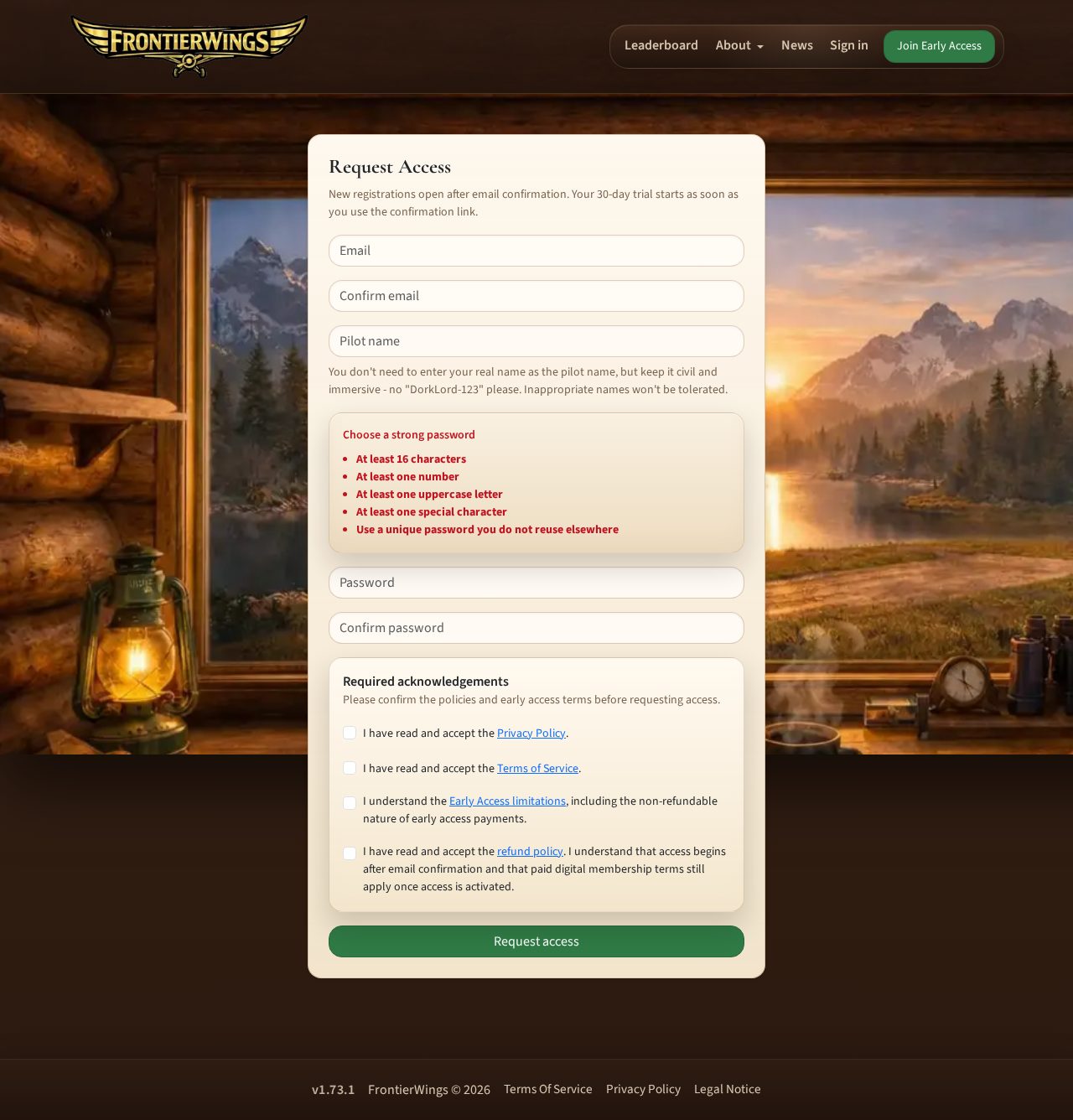
Use the website registration page to request access.
You will provide:
- your email address
- your email address again for confirmation
- your pilot name
- your password
- your password again for confirmation
- required legal and early-access acknowledgements
Your pilot name does not need to be your real name. Pick something immersive and appropriate because it represents you inside FrontierWings.
Every new pilot starts in Freelance mode. Company mode becomes available later if that pilot founds or joins a company.
After registering, confirm your email using the link FrontierWings sends you. Your 30-day trial starts when you confirm your email.
Sign In To The Website
After email confirmation, sign in with your email and password.
FrontierWings uses email two-factor verification for interactive web login. If asked for a code, check your email, enter the code, and continue.
You can use remember-me if you want the website to keep you signed in on that browser.
If you forget your password, use the password recovery link on the sign-in page and follow the email instructions.
If you see the one-time security-update notice, sign in again with your current password and a fresh email code. Old browser sessions and remember-me cookies cannot restore the previous login. A temporary authentication-unavailable page asks you to retry; it does not mean your account or mission was deleted.
Use Sign out from the account menu when you are finished on a shared computer.
Manage Pilot Personas
An account can have up to six independent pilots. Open Manage Pilots from the account menu to create a pilot or choose which pilot is currently selected.
Each pilot keeps separate missions, flight history, rank, reputation, awards, tours, location, public-achievement setting, and company membership. Your custom airfields are shared across all pilots on the account.
You cannot switch pilots while the account has an active mission. Simulator-client authentication belongs to the account, so switching pilots does not sign out saved client sessions. Accept a mission with the newly selected pilot, then reload it in the client without signing in again.
The original pilot created during registration is marked Original pilot and cannot be deleted. Secondary pilots can be permanently deleted after you select a different pilot and resolve all active or pending missions, pending manual PIREPs, company membership, and pending company applications.
Deletion requires a checkbox and the pilot name typed exactly as shown. Persona-owned progression, awards, tour progress, and generated board missions are removed. Resolved flights, terminal PIREPs, authored tours, and company credit remain as unattributed historical records.
Check Your Access
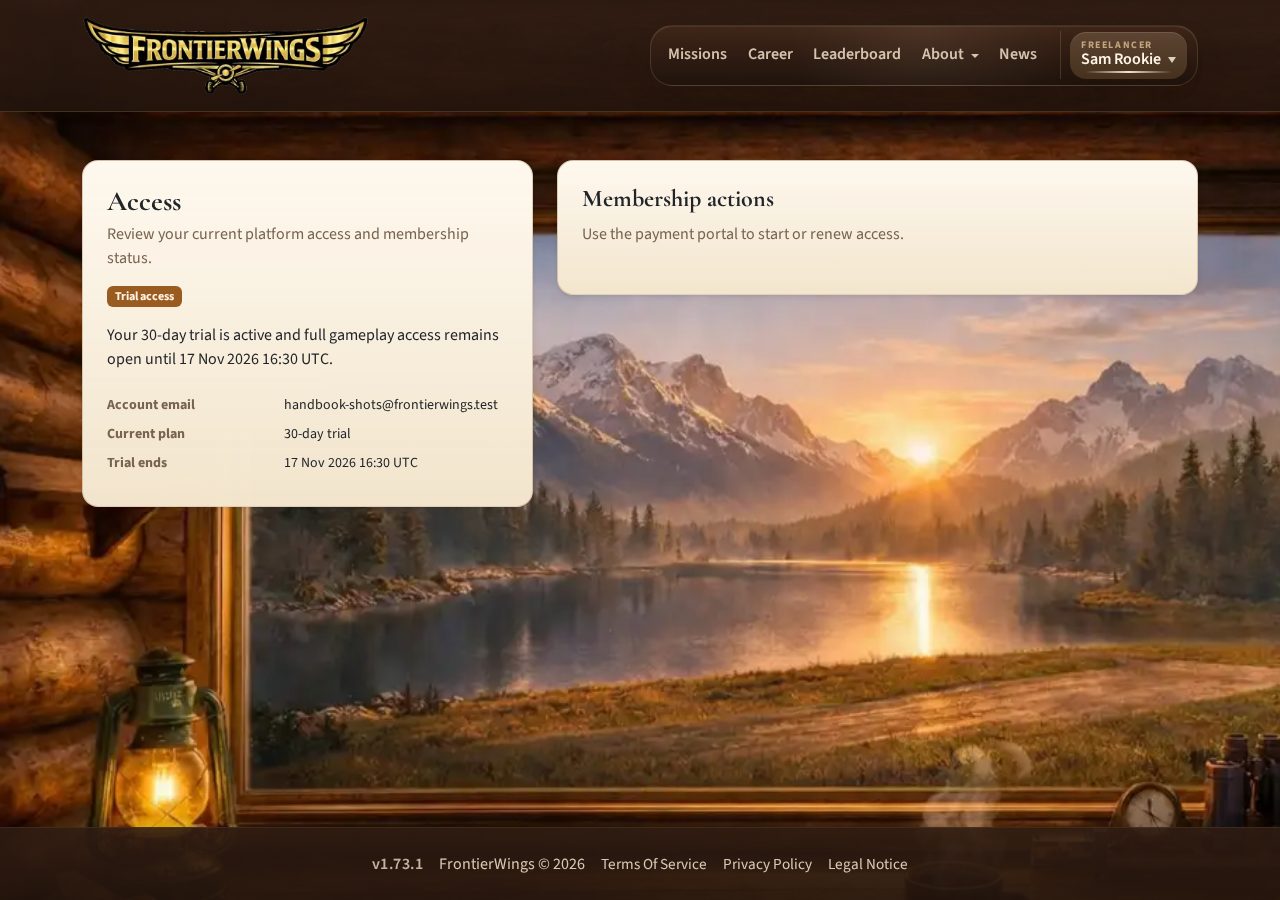
Open Billing from your account menu to see your current access state.
The billing page shows:
- whether your access is active
- your current plan
- trial or membership timing
- available membership actions
FrontierWings currently supports a 30-day trial after email confirmation, monthly membership, yearly membership, and a one-time lifetime supporter option.
If paid access is needed, choose a plan and continue through Stripe Checkout. Subscription management happens through the hosted billing portal from the Billing page.
If gameplay access expires, account pages remain available. If you already accepted a mission, FrontierWings is designed to let you finish that accepted flight rather than strand it halfway through.
The Website Navigation
After signing in, the main navigation includes the areas most pilots use:
Missions: find, accept, split, activate, or review flight workCareer: view achievements, reputation, rank progress, and validation historyLeaderboard: compare pilot and company results- account menu: pilot selection plus clearly separated
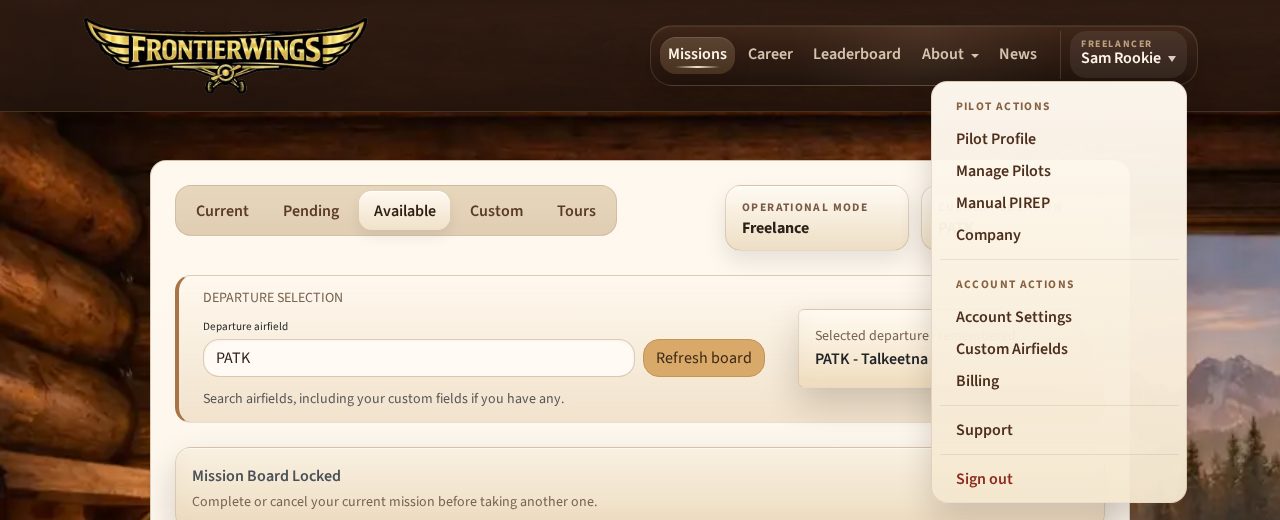
Pilot ActionsandAccount Actions
Pilot Actions include Pilot Profile, Manage Pilots, Manual PIREP, and Company. Account Actions include Account Settings, Custom Airfields, Billing, published member pages or downloads, and Sign out.
Some public pages, news posts, help pages, or download pages may also appear depending on site content.
Career Modes
FrontierWings has two personal flying styles: Freelance and Company.
You can switch between them from Profile.
Freelance Mode
Freelance mode is best when you want to choose your own departure and quickly find a mission board from there.
In freelance mode:
- you can pick the departure airfield on the mission board
- FrontierWings remembers your last freelance departure
- you can create custom cargo missions
- you are not tied to a home base
Company Mode
Company mode is best when you want route continuity.
Company mode becomes available when the selected pilot founds or joins a company. The company HQ becomes that pilot's home airfield; it is not chosen separately in the pilot profile.
In company mode:
- the board follows your last company-mode location
- assignments tend to keep your solo career centered around the company HQ and your current operating area
- company credit can be awarded when you accept or activate a mission as an active member in company mode
Return to HQcan move your company-mode location back to the company HQ when no mission is active
Return to HQ does not simulate a flight and awards no flight time, mission completion, or career credit.
Company mode does not mean you must own aircraft, manage fleets, or run an airline. It is still a pilot-focused mission loop.
Finding A Mission
Open Missions to see the mission desk.
The mission desk has several views:
Current: your active mission, if you have onePending: saved mission remainders and custom missions waiting for activationAvailable: the generated mission boardCustom: create a freelance cargo mission, available in freelance modeTours: authored multi-leg routes
Your account can only have one active mission at a time, even when it has multiple pilots.
Available Missions
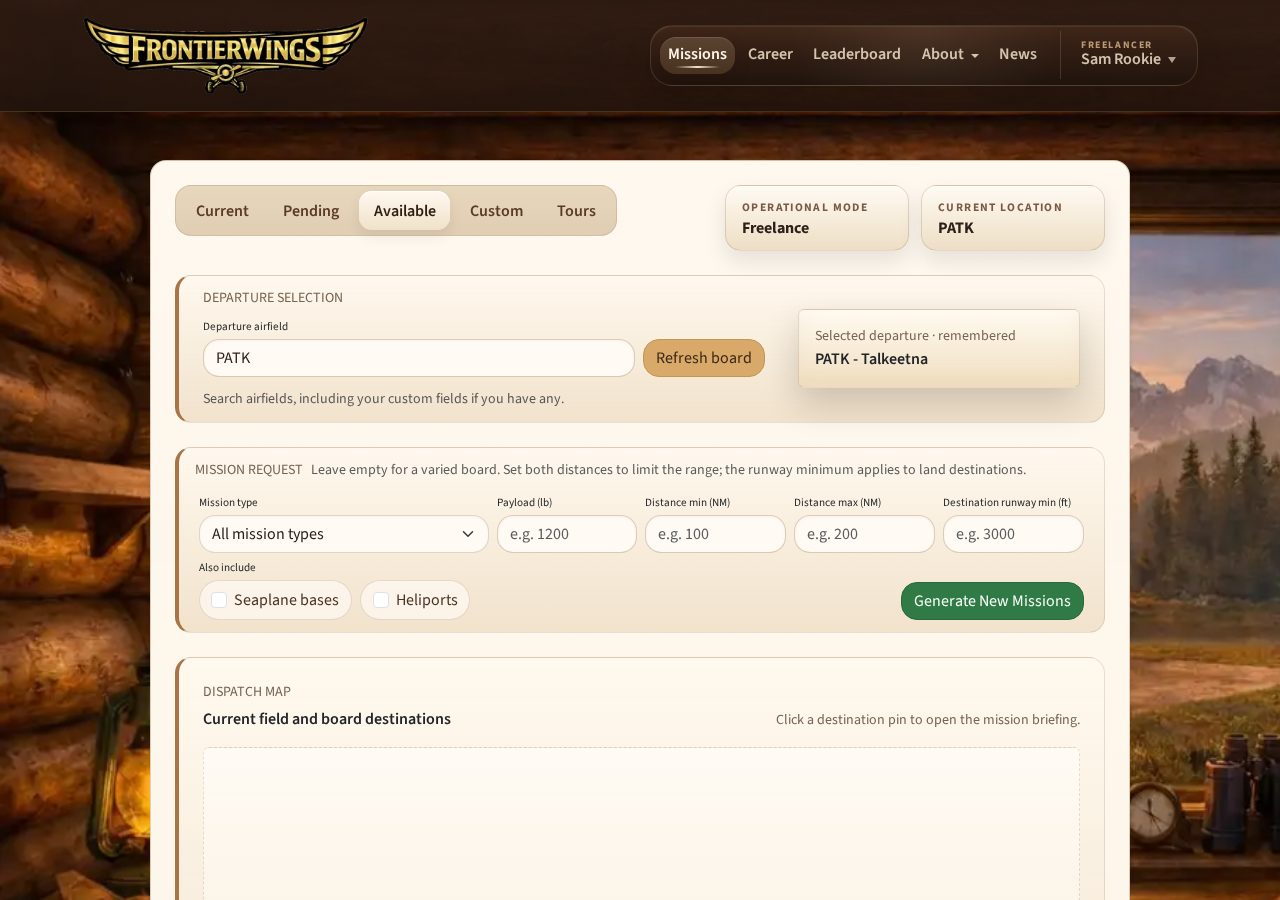
The Available board is the normal place to pick a mission.
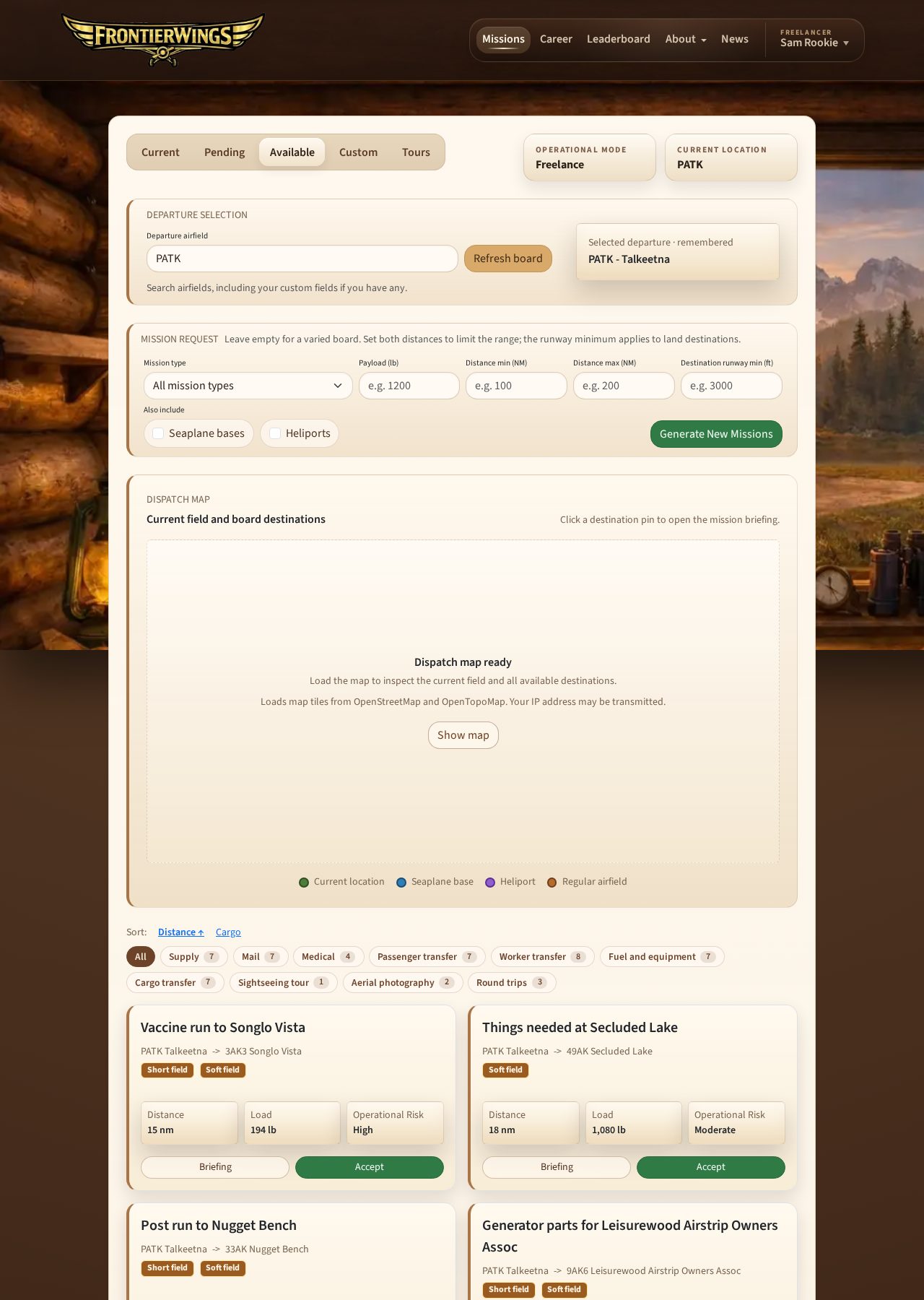
Mission cards show the work being offered, route, load, distance, and other dispatch details. Open a mission briefing before accepting so you understand the route and aircraft demands.
In freelance mode, choose a departure airfield using the selector at the top of the board. You can search by ICAO, ident, or airfield name.
Departure search includes your account's private custom airfields and enabled airfield collections, including seaplane bases and heliports. Choosing a seaplane base automatically enables Seaplane bases; choosing a heliport or a runway shorter than 1,000 ft automatically enables Heliports. These required settings also follow your remembered departure.
In company mode, the board follows your company-mode location and company-HQ continuity.
Use the compact Distance and Cargo links above the mission list to sort the current board. Click the active link again to toggle ascending or descending order; its arrow shows the current direction. Sorting preserves your departure and generation filters.
Below the sort links, a row of compact filter buttons narrows the board by mission type without reloading the page: All, any of the types currently on the board (Supply, Mail, Medical, Passenger transfer, Worker transfer, Fuel and equipment, Cargo transfer, Sightseeing tour, Aerial photography), or Round trips (missions that start and end at your departure field). Each button shows how many offers match it, and types with no offers have no button. Round trips overlaps the sightseeing and photo types. The filter also applies to the dispatch map pins, only hides offers (it never replaces the board), and is remembered in your browser across sorting, accepting, and board changes; it falls back to All when the remembered type has no offers.
The generation form also offers Destination runway min (ft). Enter the minimum longest-runway length you want at land-airport destinations. This filter does not apply to the departure, seaplane bases, or heliports. Leave it empty to use the normal destination eligibility rules.
Distance limits are optional, but must be entered together as whole numbers from 6 to 500 NM, with the maximum at least as large as the minimum. If a filter is incomplete or invalid, the form highlights the affected field, keeps your entered values, and leaves the existing board intact so you can correct and resubmit it.
Land airfields are always included. If you want specialized route types, enable:
Seaplane basesHeliports
Sightseeing And Photo Flights
Some boards include round-trip Sightseeing tour or Aerial photography missions. You depart from and land back at the same airfield and fly over two to four named sights, such as peaks, glaciers, lakes, volcanoes, parks, or towns, in the listed order. Tours carry sightseeing guests; photo flights carry a photographer, so keep the flight smooth.
The briefing lists the sights as ordered waypoints, which use the normal waypoint rules (speed-aware capture radius, no altitude requirement). You can download the route as a flight plan. Like other waypoint routes these missions cannot be split. They appear only where points of interest are available near the departure airfield, currently in these regions: North America (Alaska, Canada including the Arctic islands, the United States, Greenland, Mexico, Central America, and the Caribbean), South America (Colombia, Venezuela and the Guianas, Brazil, Peru, Ecuador, Bolivia, Paraguay, Uruguay, northern Chile and Argentina, and Patagonia), Europe (Iceland, Norway, Sweden, Finland, Svalbard, Great Britain and Ireland, Spain and Portugal, the Alps, Italy, the Balkans and Greece, and Turkey with the Caucasus), Africa (Kenya, Tanzania, Uganda, Ethiopia and neighbours, Namibia, Botswana, Zambia, Zimbabwe, Mozambique, and South Africa), Asia (the Himalaya with Nepal, Bhutan, northern India and Pakistan, Japan and Korea, and the Russian Far East), and Oceania (Australia, Tasmania, New Zealand, Papua New Guinea, Fiji, Samoa, Tonga, Vanuatu, the Solomon Islands, French Polynesia, the Cook Islands, and Hawaii). More regions are added over time.
Use Generate New Missions if you want a fresh board. Available missions are disposable board offers, so refreshing the board can replace them.
Mission Briefings
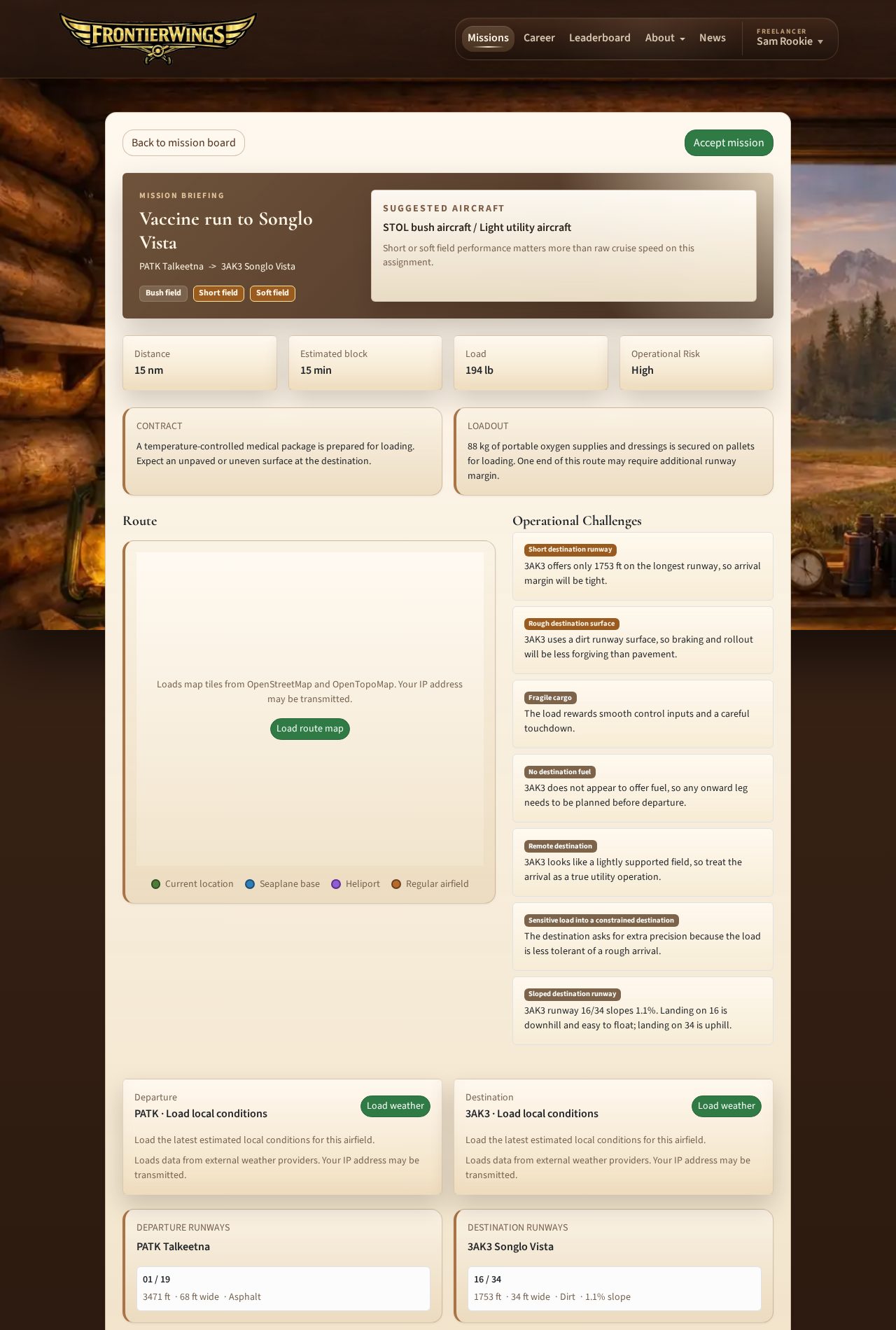
A mission briefing is your dispatch packet.
It may include:
- route summary
- distance
- estimated block time
- load
- operational risk
- suggested aircraft guidance
- operational notes
- departure and destination runway details
- route map
- weather panels
- airport classification and risk notes
Use the briefing to decide whether your chosen aircraft makes sense. FrontierWings usually does not force one specific aircraft, but payload, distance, surface, runway length, water operations, or heliport routing may make some aircraft unsuitable.
The route map and weather panels load only when requested. Map tiles and weather data may come from external providers when you choose to load them.
Accepting A Mission
If the mission is available and you do not already have an active mission, click Accept mission.
Once accepted:
- the mission becomes your current mission
- the client can load it
- you should not accept another mission until this one is completed or canceled
If you change your mind before the client loads the mission, cancel it from the website. Loading locks website editing immediately. The client offers Cancel Mission At HQ before local tracking begins; once protected progress exists, finish through the normal destination, stopover, or alternate flow.
Pending Missions And Mission Splitting
Pending missions are saved work on your desk.
They are different from available board offers. Pending missions stay until you activate, split, or delete them.
Why Split A Mission
Sometimes the mission load is too heavy for the aircraft you want to fly.
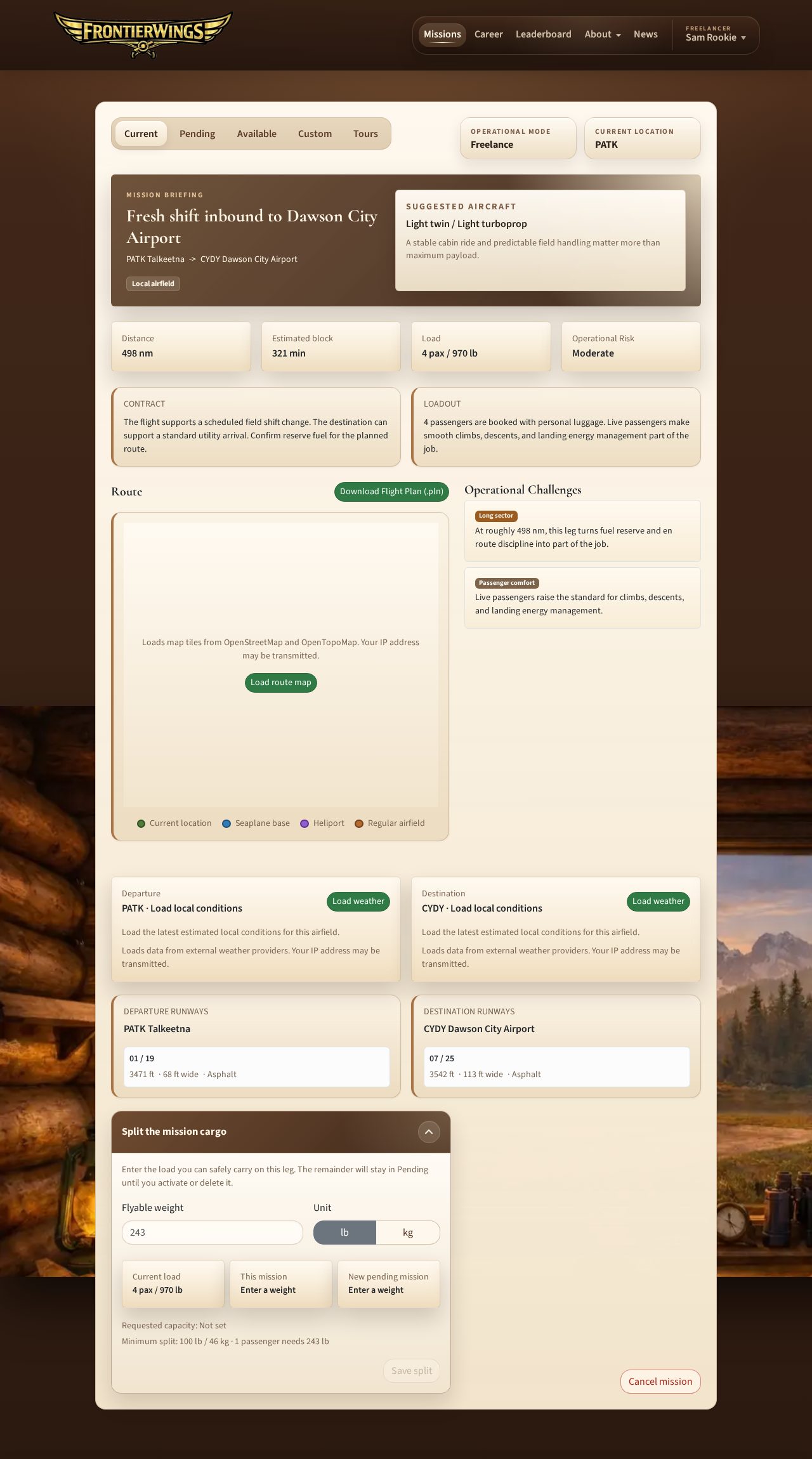
Mission splitting lets you reduce the current load and save the leftover amount as a pending mission for later.
For example, if a cargo job is too heavy for your aircraft, you can fly part of the load now and keep the remainder for another flight.
How To Split A Mission
Use the website, not the client.
- Open
Missions. - Go to
CurrentorPending. - Open
Split mission. - Enter the amount you can carry.
- Choose pounds or kilograms.
- Save the split.
The current or pending mission keeps the smaller amount. The remainder is saved in Pending.
Enter the flyable load as a whole number in pounds or kilograms. Both the part you fly and the saved remainder must be at least 100 lb, or practically 46 kg when entering kilograms.
Passenger missions can also be split, but passengers must remain whole people. FrontierWings rounds the split down to a whole number of passengers.
Split before loading the mission in the client. Fetching the mission there locks website cancellation, splitting, and editing immediately, even before tracking starts.
Tour legs and routes with mandatory waypoints cannot be split.
Activating A Pending Mission
Open Pending, choose the mission, and activate it when you do not already have a current mission.
Pending missions can also be deleted if you no longer want them. If a pending mission was created as a mission remainder, deleting it means you are intentionally discarding that saved work.
Custom Missions
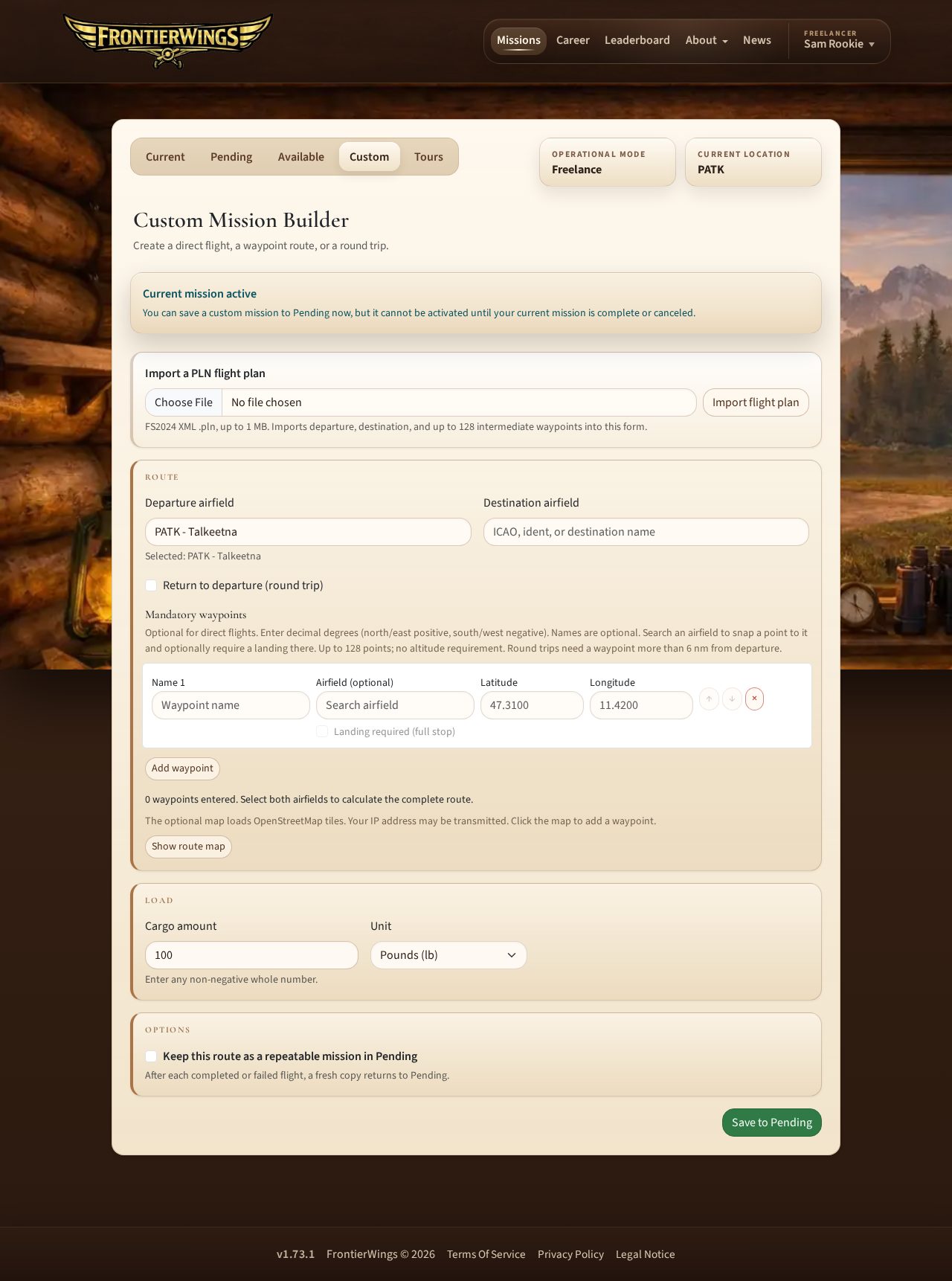
In freelance mode, the Custom tab lets you create a cargo mission with an optional waypoint route or round trip.
You choose:
- departure airfield
- destination airfield
- optional ordered airborne waypoints, or a return to the departure airfield
- cargo amount
- pounds or kilograms
- whether the route should remain repeatable
The custom mission is saved to Pending. It uses the normal mission flow after that: activate it, load it in the client, fly it, submit it, and review the result.
Both mission-board payload requests and custom missions accept zero cargo and have no cargo-entry ceiling. Use zero for aircraft addons that cannot report cargo through SimConnect; these missions do not require a payload check. For positive-load missions, the client checks that you carry enough cargo, allowing the configured shortfall tolerance. Carrying extra cargo is allowed, but only the amount requested by the mission counts toward pilot and company cargo statistics. Zero-load missions therefore credit zero cargo.
When you enable Keep this route as a repeatable mission in Pending, every completed or failed simulator flight leaves its own career-history result and creates a fresh Pending copy of the same route and load. An approved manual PIREP does the same. Delete the current Pending copy when you no longer want to repeat the route.
Before clicking Fly now on a repeatable route in Pending, you can change Cargo for this flight and choose lb or kg to suit your next aircraft. The briefing, aircraft guidance, load checks, and cargo credit use that flight's selected load. The next Pending copy remembers it, and you can change it again for the following flight. Use a non-negative whole number; 0 remains available for addons that cannot report cargo. Earlier flight history keeps its original load.
If you split a repeatable mission, the portion selected as the mission you intend to fly keeps the repeat setting. The saved remainder is a normal one-time Pending mission.
Custom missions are useful when you want to fly a specific route instead of choosing from the generated board.
Waypoint Routes And PLN Import
Enter up to 128 mandatory points by decimal coordinates or by clicking Show route map. Reorder/remove them before saving. Return to departure creates a round trip; it needs a point more than 6 NM from departure.
You can also Import a PLN flight plan (MSFS XML, up to 1 MiB) to fill the editable departure/points/destination form. Review it, replace unknown endpoint airports, and explicitly Save to Pending. Import alone creates no mission. Intermediate airports are airborne flyovers, not mandatory landings; imported altitude values add no altitude requirements.
Fly all required points in order before landing at the destination. The supported client detects them airborne within a speed-aware radius: 2 NM through 230 kt groundspeed, growing to a maximum 6 NM from 400 kt. Map circles show the minimum; the client tooltip shows the current radius. Red progress dots turn green on detection, with a sound when available.
An early return to the destination does not finish an incomplete route or trigger auto-submit. Depart again to reach the remaining points, or save the landed checkpoint with Continue Later. Repeated copies retain the route; waypoint missions cannot be split. See Waypoint Routes And Round Trips for details.
Mission Tours
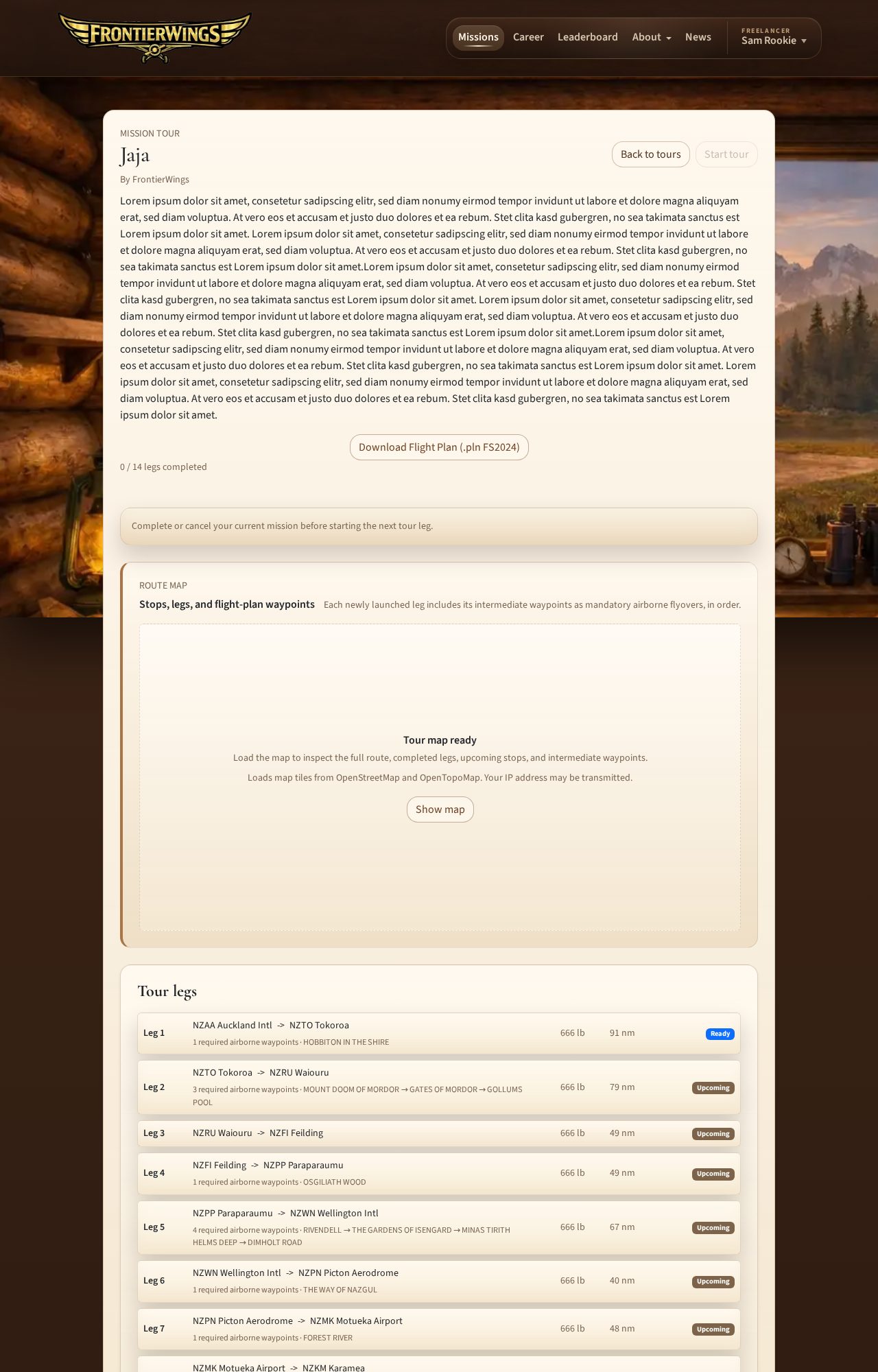
Mission tours are authored multi-leg routes.
Open Missions, then Tours.
A tour page can show:
- tour title and description
- author information
- route map
- downloadable
.plnflight plan - total legs
- completed legs
- current or next leg
- cargo and distance per leg
Tours are flown one leg at a time. Completing a leg advances the tour. You can still fly other missions between tour legs.
Each newly launched leg includes the intermediate flyovers from the stored tour PLN. Its map, client progress, and active-mission views show those points in order. Airport stops remain landing destinations. Tour legs may have more than the custom builder's 20 points; an accepted leg keeps its route after later tour edits.
To fly a tour:
- Open the tour.
- Review the route and legs.
- Download the flight plan if you want to use it in MSFS.
- Optionally enter a lighter cargo weight (
lborkg) next to the launch button if your preferred aircraft cannot carry the authored load. The field shows the authored weight; leave it empty to fly that. The weight can be anywhere from 0 up to the authored weight, and applies to that leg only. - Launch the next leg.
- Fly and submit it through the normal client process.
- Return later for the next leg.
The weight is fixed once the leg is launched. To change it, cancel the leg (before the client has opened it) and launch it again.
Completed legs remain counted even if you take a break from the tour.
Airfields And Planning
You can search airfields by:
- ICAO
- ident
- airfield name
Airfield pages can show:
- map location
- elevation
- runway count
- runway length and surface
- airport classification
- operational risk notes
- weather planning panel
Use airfield details to check whether your aircraft and route plan are realistic before flying.
Custom Airfields
Custom airfields are private addon airfields saved to your account and shared by all of its pilots.
Use them when you fly from or to an addon airport that FrontierWings does not already know about.
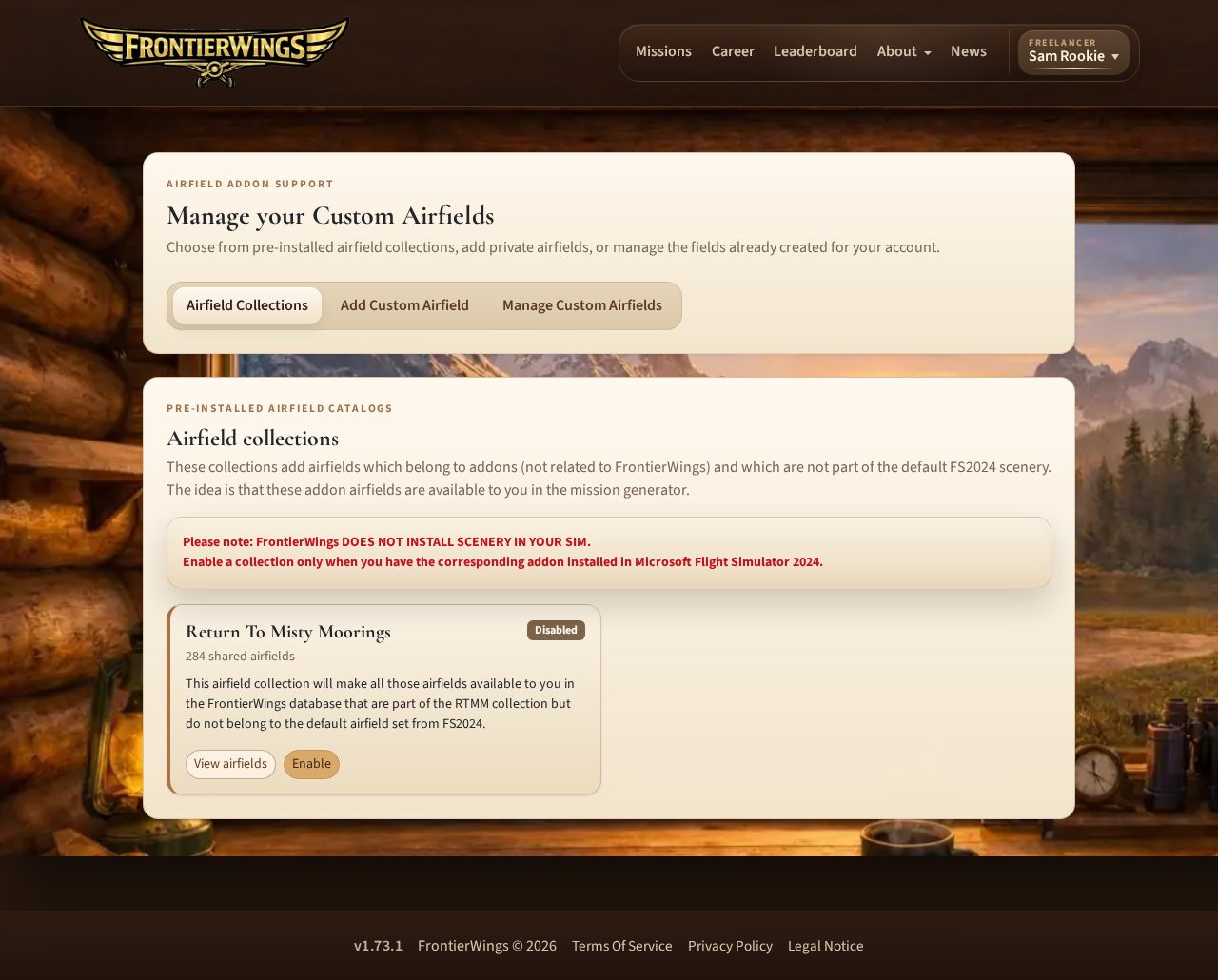
Open Custom Airfields from the account menu. The page separates its tools into Airfield Collections, Add Custom Airfield, and Manage Custom Airfields tabs.
Curated Airfield Collections
The Airfield Collections tab lists addon collections published by FrontierWings administrators. Enable a collection when you have that scenery installed in Microsoft Flight Simulator. Enabling does not download or install the addon.
A collection is enabled for every pilot on your account. Its shared airfields become available in member airfield search, mission-board departures and destinations, and Custom Missions. Collection airfields are stored separately and never use any of your 2,000 personal custom-airfield slots.
Disabling a collection removes its fields from new searches and destinations and clears disposable mission-board offers. Active missions and career history remain valid. If one of your pilots is currently at a disabled collection field, FrontierWings still allows that field as a departure so the pilot can fly out. Pending missions using the collection cannot be activated until the collection is enabled again.
Public Random Flight Generator routes, company headquarters, authored tours, and diversion recognition continue to use standard FrontierWings airfields.
Use the Add Custom Airfield tab for manual entry. For each custom airfield, FrontierWings needs:
- code or ident
- name
- coordinates
- elevation
- longest usable runway length
- runway surface
- whether it is a land airport, seaplane base, or heliport
Custom airfields can be used in normal mission workflows by any pilot on your account. Other accounts cannot see or use them.
Use the Manage Custom Airfields tab to search and edit saved custom airfields. Deleting may be blocked if the airfield is tied to a current location, company HQ, open mission, or historical mission record.
To remove several airfields, select row checkboxes or use Select all shown, then Delete selected. Account-wide selection also covers other pages and search-hidden fields. Choose 10, 50, or 250 rows per page; there is no delete cooldown. Confirm before deletion. Referenced locations, retained missions, company HQs, or authored tours protect fields, which are skipped; the other selected fields are deleted together.
Importing Custom Airfields From CSV
CSV import is available to administrators, complimentary review accounts, and accounts with an active paid monthly or yearly membership or lifetime supporter access. Trials and admin grants without the administrator role may continue using manual custom-airfield entry but do not unlock bulk CSV upload.
Use Import CSV on the Add Custom Airfield tab when an addon contains too many locations to enter individually. Download the FrontierWings template and keep its eight column names:
ident,name,operation_type,latitude,longitude,elevation_ft,usable_length_ft,surface
CSV requirements:
- UTF-8, comma-delimited
.csvfile no larger than 512 KiB - no more than 2,000 data rows and no more than 2,000 saved custom airfields on the account
operation_typemust beairport,seaplane_base, orheliportsurfacemust beasphalt,concrete,grass,gravel,dirt,turf,sand,ice,snow, orwater- airports and seaplane bases require a usable length; heliports may leave length and surface blank
- seaplane bases use
water; land airports use a non-water surface - coordinates use decimal points; names may use letters, numbers, spaces, hyphens, and underscores
- maximum characters per value: ident 10, name 120, operation type 20, latitude 20, longitude 20, elevation 6, usable length 5, and surface 12
Uploading creates a preview and does not save anything. The preview marks rows as ready, skipped, or invalid and offers a downloadable report. Existing custom-airfield idents on the account are skipped without changing their saved values. A conflict with a standard FrontierWings airfield or any other validation error blocks the complete import. When the preview has no errors, confirm it to create all ready rows in one operation.
Flying With The Client
The FrontierWings client is the bridge between the website and Microsoft Flight Simulator 2024.
The website handles account, mission selection, career, company, and recognition features. The client handles the actual tracked flight.
The client can:
- sign in with email verification
- restore a saved session
- load your active mission
- cancel a mission at HQ before protected tracking progress exists
- show dispatch details
- show ordered waypoint progress and retain it in landed checkpoints
- check aircraft load before departure and recheck it during later flight stages
- start tracking
- record flight telemetry
- detect landing and touchdown information
- submit the completed flight manually or automatically after a stable destination stop
- retry pending submissions if upload fails
- record the route you fly, which the website shows on a map in your flight details
- update itself: it checks for new versions regularly, downloads them in the background and restarts into them only when nothing is in progress, never during tracking or while a finished flight is waiting to be submitted
The client records the flight, but the backend always decides the final validation result and career credit.
The client is a single desktop app for Windows, Linux and macOS. Reading the simulator needs Microsoft Flight Simulator 2024 on Windows, so tracked flights are flown from a Windows PC. On Linux and macOS the client can sign in and show your missions, but it cannot track a flight yet. The client keeps your login on your computer, so you stay signed in between sessions until you sign out.
Step 1: Prepare The Simulator
Before starting tracking:
- Open Microsoft Flight Simulator 2024.
- Choose the aircraft you want to fly.
- Place the aircraft at the mission departure airfield.
- Load fuel, passengers, or cargo as appropriate for the mission.
- Keep the simulator running while you use the FrontierWings client.
FrontierWings does not manage aircraft ownership. You choose the aircraft, but it must be suitable for the mission.
Step 2: Sign In To The Client
Open the FrontierWings client.
Enter your email and password, then click Sign In.
The client sends an email verification code. Enter the code and click Verify Code.
If the client still has a valid saved session, it may restore your login automatically. Active simulator sessions remain valid while used regularly; password changes, password resets, and Sign out all simulator clients require a fresh sign-in.
Step 3: Load The Active Mission
Click Load Active Mission.
If no mission is active, return to the website and accept or activate one.
If a mission loads, check the route, departure, destination, and dispatch load.
If you need to abandon an untouched mission and website cancellation is no longer available, use Cancel Mission At HQ before starting tracking. The button is unavailable once protected progress exists.
Step 4: Download The Flight Plan If Wanted
Use Download Flight Plan (.pln) beside the Route heading on the website's Missions → Current page. It downloads the current mission's complete route, including mandatory waypoints and round trips. For tour missions, it contains the accepted leg's route rather than the whole tour. The client itself does not generate flight plan files.
You can import that flight plan into Microsoft Flight Simulator if it helps with navigation.
Step 5: Check Aircraft Load
Click Check Aircraft Load.
The client compares the expected dispatch load with the detected aircraft load.
If the load is not acceptable, adjust the aircraft in the simulator and check again.
If the load passes, the client moves to Ready To Track.
This first check is not a one-time clearance. Depending on the server-managed tracking profile, the client checks payload again during ground roll, after takeoff, periodically in flight, and at arrival. Do not change aircraft or alter the mission payload after a successful check.
Step 6: Start Tracking
When ready, click Start Tracking.
From this point, the client tracks the mission. Keep the client open while flying.
Cancel Tracking discards the current flight's recorded progress while leaving the mission active at HQ. The client asks for confirmation and defaults to keeping tracking active so an accidental click does not lose the flight.
During tracking, the client shows useful flight information such as:
- aircraft
- route
- distance to go
- ground speed
- altitude
- heading
- touchdown information after landing
Step 7: Fly The Mission
Fly from the assigned departure to the assigned destination.
For a normal successful mission, FrontierWings expects:
- you start near the assigned origin
- you land near the assigned destination
- the flight includes a real airborne segment
- enough telemetry is recorded
- the client remains open while tracking
- the aircraft does not change mid-flight
- all required airborne waypoints are reached in order
- tracking is not interrupted by suspicious simulator state changes
Do not use slew, teleport, aircraft swapping, or other simulator actions that would make the flight invalid.
Step 8: Finish At The Destination
After landing at the assigned destination, come to a stable full stop.
When the client is ready, click End Flight Tracking.
The client saves the completed flight journal locally before showing submission. HQ reconstructs and validates that evidence.
Click Submit PIREP to send the result to FrontierWings.
After submission, the website validates the mission and updates your career if the flight is accepted.
Auto-submit PIREP
Enable Auto-submit PIREP before or during the flight if you want the client to complete a normal destination arrival automatically.
After you land at the assigned destination and remain stably stopped for 20 seconds, the client ends tracking and submits the PIREP. Moving the aircraft again interrupts the countdown. Cancel Auto-submit stops the current countdown; you can still finish and submit manually.
Stopovers, Alternates, And Recovery
Bush flying does not always go perfectly. FrontierWings supports grounded stopovers and alternate endings.
Continue Later
Use Continue Later after a real airborne leg and a stable landed stop when you want to resume later. It also works on an early destination return with outstanding waypoints; normal finish remains blocked until every point is reached.
This keeps the mission active. It does not submit a mission result yet.
Important rules:
- resume must happen on the same machine
- use the same aircraft
- start near the saved stop
- resume within the original loaded mission's 30-day dispatch window; making another stop does not restart that window
- be prepared to pass another payload check
- no mid-air saving is supported
Stay on a supported build when opening saved stops.
End At Alternate
Use End at Alternate when you decide the mission is over somewhere other than the planned destination. The client creates a saved flight journal that must then be submitted.
This finalizes the mission as failed or diverted. Valid airborne mission time may be preserved only if the other validity checks pass and FrontierWings recognizes a standard land airport within the allowed distance of your final stop. Private or collection addon fields, heliports, and seaplane bases do not currently qualify for alternate recognition.
Your pilot location moves to that recognized alternate. If no valid alternate is recognized, flight-time credit is not guaranteed.
Closing The Client During A Flight
Do not close the client while tracking unless you intentionally want to lose the current leg.
If airborne, FrontierWings cannot save your mission in mid-air.
If on the ground away from the destination, wait until the aircraft is fully stopped and use Continue Later or End at Alternate if those buttons appear.
The client has crash recovery for landed checkpoints, but this is only for unexpected shutdowns. Treat it as a safety net, not a normal save system.
If Submission Fails
If upload fails, the client keeps a pending submission locally.
If HQ reports that the simulator session expired or was revoked, the client returns to sign-in while retaining the completed flight. Sign in again, complete email verification, and submit the restored PIREP. Do not discard the saved flight.
Use Retry Submission when the connection is available again.
Use Keep For Later if you want to close the client and retry later.
Do not discard a saved flight unless you are sure you no longer want to submit it.
The Flight Finished screen may instead show Recheck connection to HQ when the flight is saved but HQ is not yet reachable for submission. This is a different state from Submission Failed, which offers Retry Submission and Keep For Later.
Validation And Results
After submission, FrontierWings validates the completed flight.
A mission result can be:
- pending because there is not enough telemetry evidence; the mission stays active and no progression is credited yet
- completed and validated
- failed or rejected
Flight notes add context to a completed or rejected result; they are not a separate result status.
A pending validation result is different from a saved mission in the website's Pending tab or a manual report awaiting administrator review. Check the response reason; pending validation does not mean the flight will automatically pass later.
Validation looks at practical mission requirements such as:
- starting near the assigned origin
- finishing near the assigned destination
- having a real airborne segment
- recording enough telemetry
- proving every mandatory airborne waypoint in order
- avoiding hard invalidating events
- keeping the same aircraft during tracked flight
- keeping the arrival payload at or above the requested load minus the allowed shortfall tolerance
- keeping simulator rate within the allowed limit
- avoiding slew and suspicious position jumps
Some rough flying can still be accepted but recorded as notes. Examples may include firm landings or handling concerns. More serious issues can fail the mission.
Completed missions add valid logged flight time to your career. Rejected missions normally do not count as completed contracts, though recognized alternate diversions may preserve valid airborne time.
Valid flight time counts only while the mission is active, the aircraft is airborne, and the simulator is not paused. Weather helps with planning but does not affect mission validation.
Manual PIREP As A Last Resort
Use Manual PIREP only when you flew an active mission but a client, internet, or platform failure prevented normal submission.
Open Manual PIREP from the account menu. The active mission fixes the departure and destination, so they cannot be changed in the form. Enter the actual airborne time as a whole number of minutes and briefly explain what failed. Alternate landings must use the client's alternate-ending flow instead.
Every manual PIREP requires administrator review. Submitting it moves the mission to Pending while review is open, so you can take other work. You cannot activate or delete the reviewed mission until the report is withdrawn or resolved.
An approved report credits flight time and rank progress and appears with a Manual PIREP marker in Validation History. Approval is not automatically replaced by a later client upload, so retry any saved client submission first. If you withdraw a pending report, its mission becomes active again only when your account has no other active mission; otherwise it stays pending. A rejected report also leaves its mission pending for later activation or deletion.
Career Page
Open Career to review your pilot history and progression.
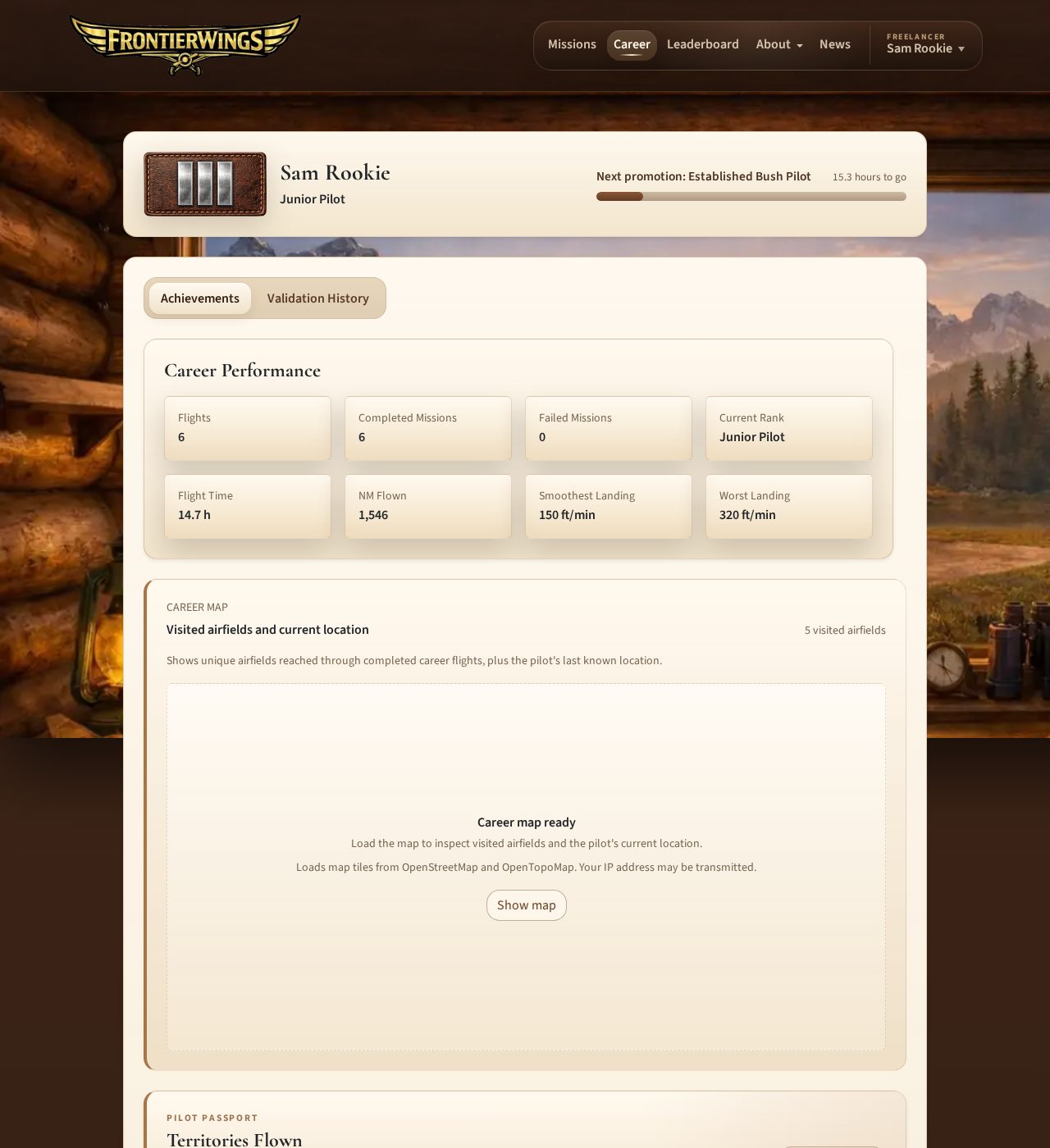
The career page includes:
- pilot name and title
- rank or promotion progress
- company membership display, if applicable
- achievements
- awards
- reputation
- validation history
Achievements
The achievements view summarizes milestones and recognition from your flying history.
Achievements are meant to tell the story of your pilot career. They do not replace the main progression loop of flying valid mission time.
The Career Map shows completed-flight endpoints, recognized intermediate airfield stops, and your latest known location. After a stable stop followed by another takeoff, the nearest open account-visible field nearby can count (large airfields are matched generously, so you do not need to stop close to the airfield's center) after the whole mission is submitted and successfully validated. This includes private/collection fields, supported seaplane bases, and heliports; an unmatched bush landing creates no airport visit. Local Continue Later alone adds no visit.
The Pilot Passport collects country/territory flags from completed-flight origins, destinations, and recognized intermediate stops. Coming to a full stop at an airfield in another country on the way earns that country's flag, even if the stop was not part of the route. A touch-and-go does not count. Stops add no separate completed mission, cargo, or time credit. Summary/manual submissions and already-reduced historical flights cannot provide intermediate visit evidence.
Awards And Notifications
FrontierWings includes monthly awards, special awards, and in-app notifications for recognition.
Special awards exist, but what they are and how to earn them is for you to discover while flying.
If you receive an award notification, follow it back to your career achievements view.
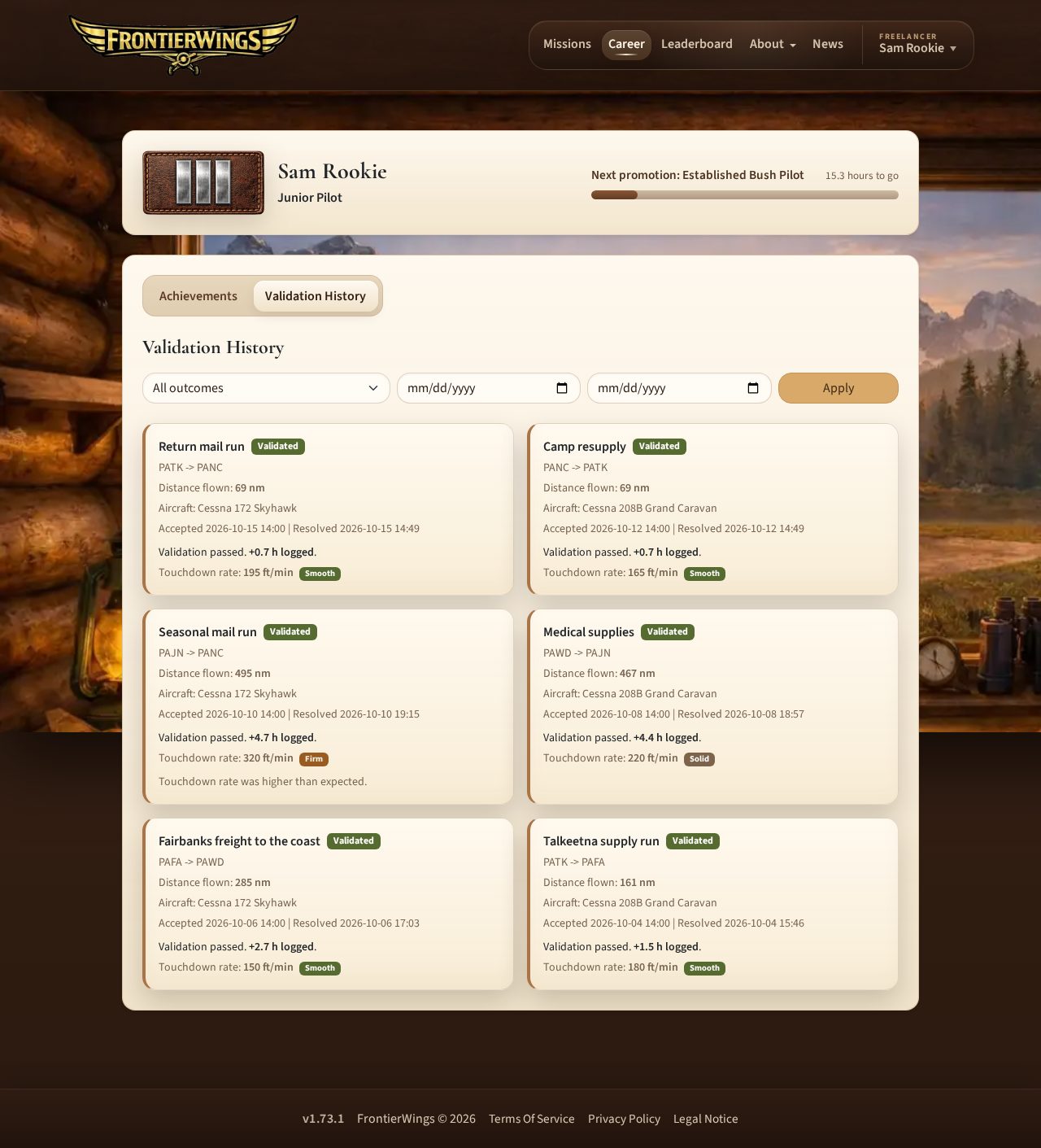
Validation History
The validation history tab shows completed and failed missions.
You can filter by:
- all outcomes
- completed
- failed
- date range
Each entry can show route, aircraft, distance flown, accepted time, resolved time, logged flight time, touchdown rate, validation reason, and flight notes. Click an entry to open its flight details: logged flight time, credited distance, aircraft, touchdown rate with its rating, accepted and resolved times, stopovers, and flight notes.
For validated flights flown with a recent client version, the flight details also have a route map. Click Show map to load it: the path your aircraft flew is drawn with pins for the departure, the destination, any recognized stopovers, and the planned waypoints of the route. Like the other maps it loads tiles from OpenStreetMap and OpenTopoMap only after you click, so your IP address is transmitted at that moment. Older flights have no recorded route and show no map.
Successfully validated journals also list recognized intermediate airfields with their original stop times in UTC. Retrying the same journal does not add duplicate visits.
Use this page when you want to understand why a mission passed or failed.
For a private spreadsheet copy, open Pilot Profile and choose the validation-history CSV download. It includes the selected pilot's complete resolved history, regardless of the filters or page currently open in Career.
Reputation
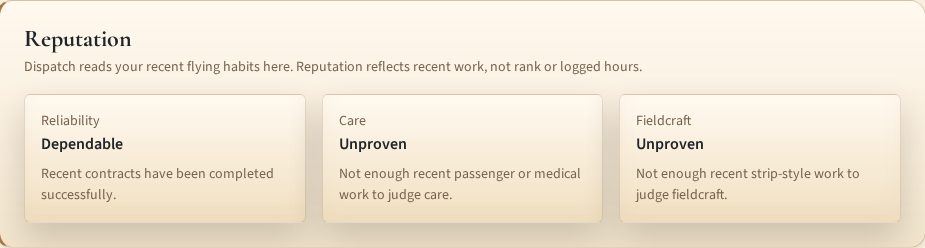
Reputation is a recent-behavior readout, not a separate XP system.
It answers: what kind of pilot have you looked like lately?
FrontierWings currently shows three reputation dimensions:
Reliability: whether you complete recent contracts successfullyCare: whether passenger and medical flights are handled smoothlyFieldcraft: whether short-field or soft-surface flying is handled cleanly
Reputation uses a rolling window of recent resolved flights. Older flights naturally drop out as you keep flying.
Unproven is not a penalty. It simply means FrontierWings does not yet have enough recent flights in that category.
Reputation does not currently:
- change mission offers
- affect rank progression
- show a hidden score
- replace logged flight time
Public Achievements
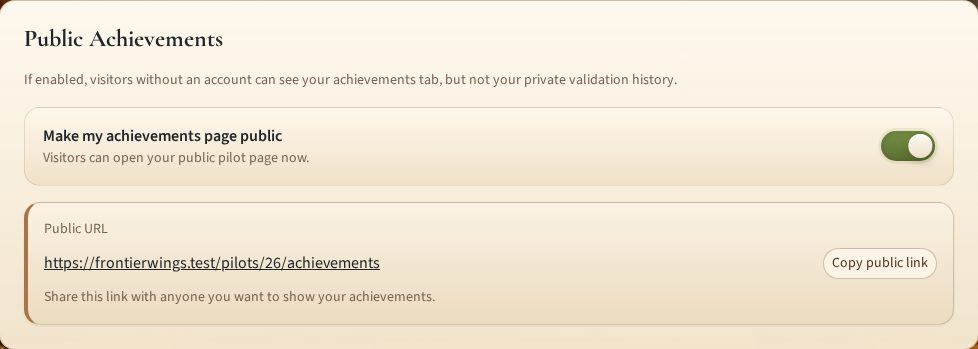
From Profile, you can choose whether your achievements page is public.
If public achievements are enabled, FrontierWings gives you a public link you can share.
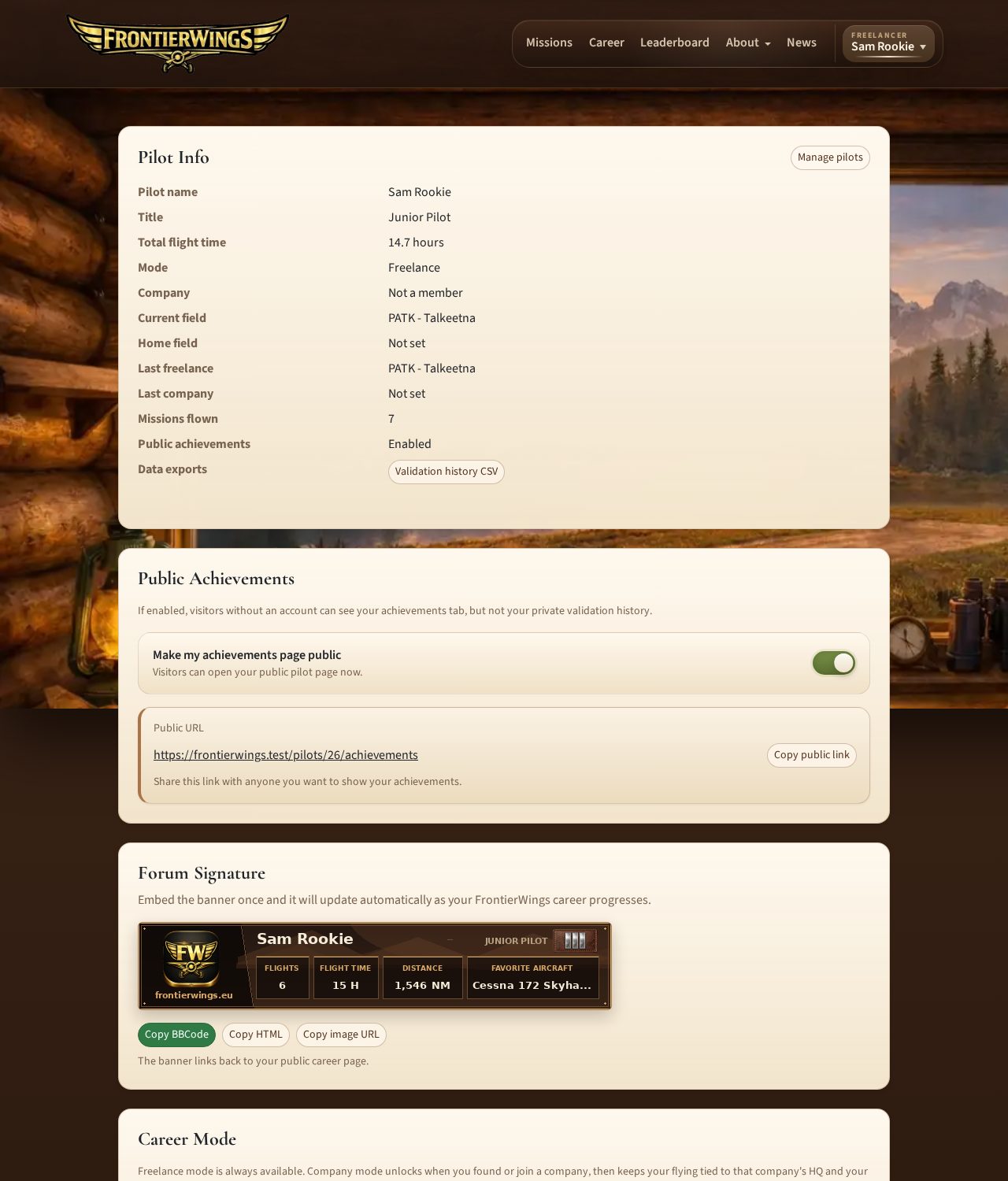
The profile also provides an automatically updated forum-signature banner with copy buttons for BBCode, HTML, and the direct image URL. The banner links back to the public pilot page.
Visitors can see your achievements page, but not your private validation history.
If you prefer privacy, keep public achievements disabled.
Leaderboards And Statistics
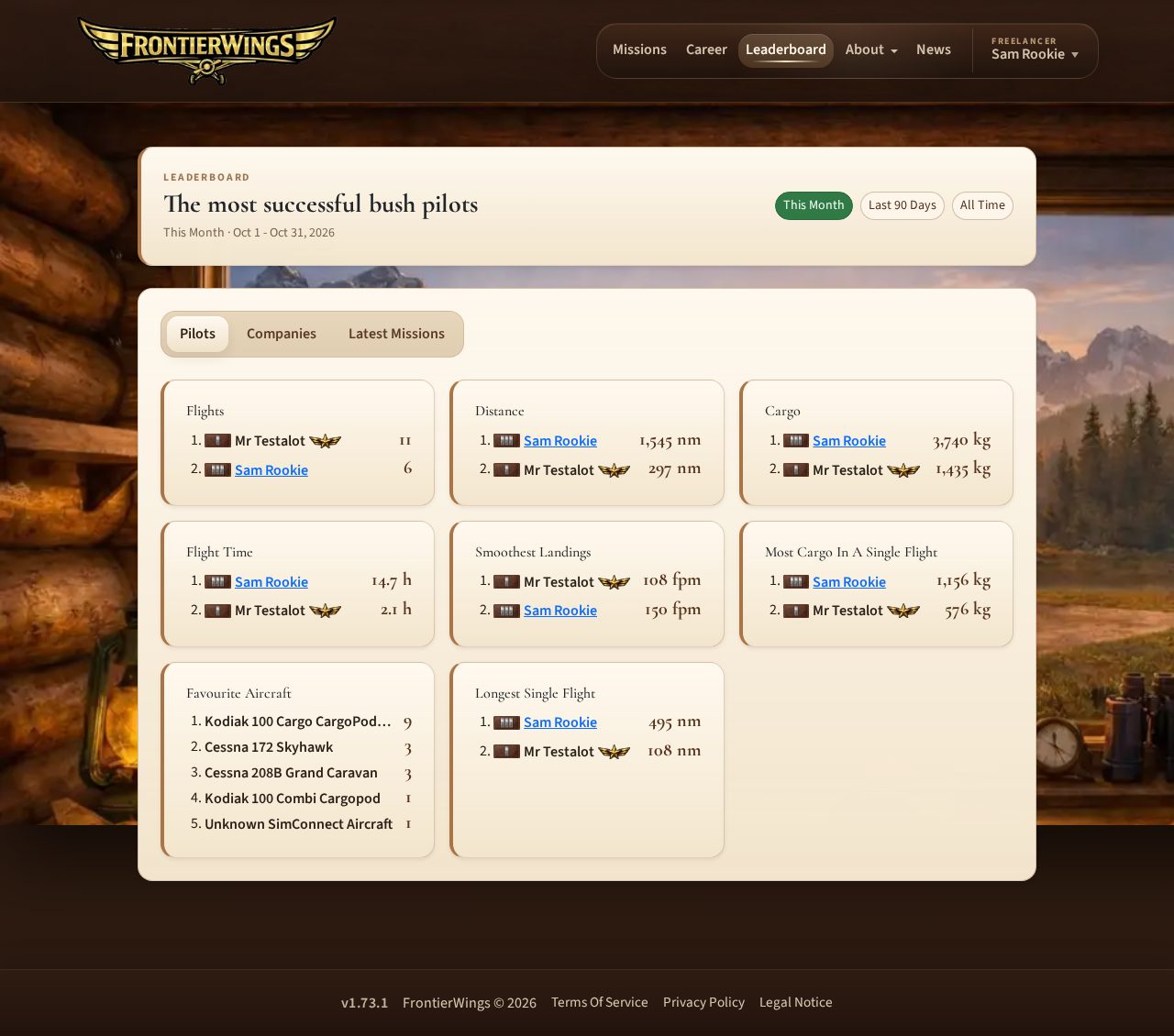
Open Leaderboard to compare pilots or companies.
You can switch between:
- pilots
- companies
- Latest Missions: the 30 most recent validated missions with UTC time, route, aircraft, load, distance, duration, and landing rate
Latest Missions shows pilot names only for public profiles; private/deleted pilots appear as Anonymous without a profile link.
You can also choose the time period, such as this month, last 90 days, or all time when available.
Leaderboard sections may include:
- flights
- distance
- cargo
- flight time
- smoothest landing
- single-flight cargo
- favourite aircraft
- longest flight
Leaderboards are for recognition and comparison. They are not required to enjoy the main mission loop.
Pilot Companies
Pilot companies are a lightweight social and recognition feature.
They are not airline management, fleet ownership, messaging, or economy gameplay.
Companies can provide:
- company profile
- logo
- headquarter airfield
- description
- roster
- applications
- company flight credit
- company leaderboards
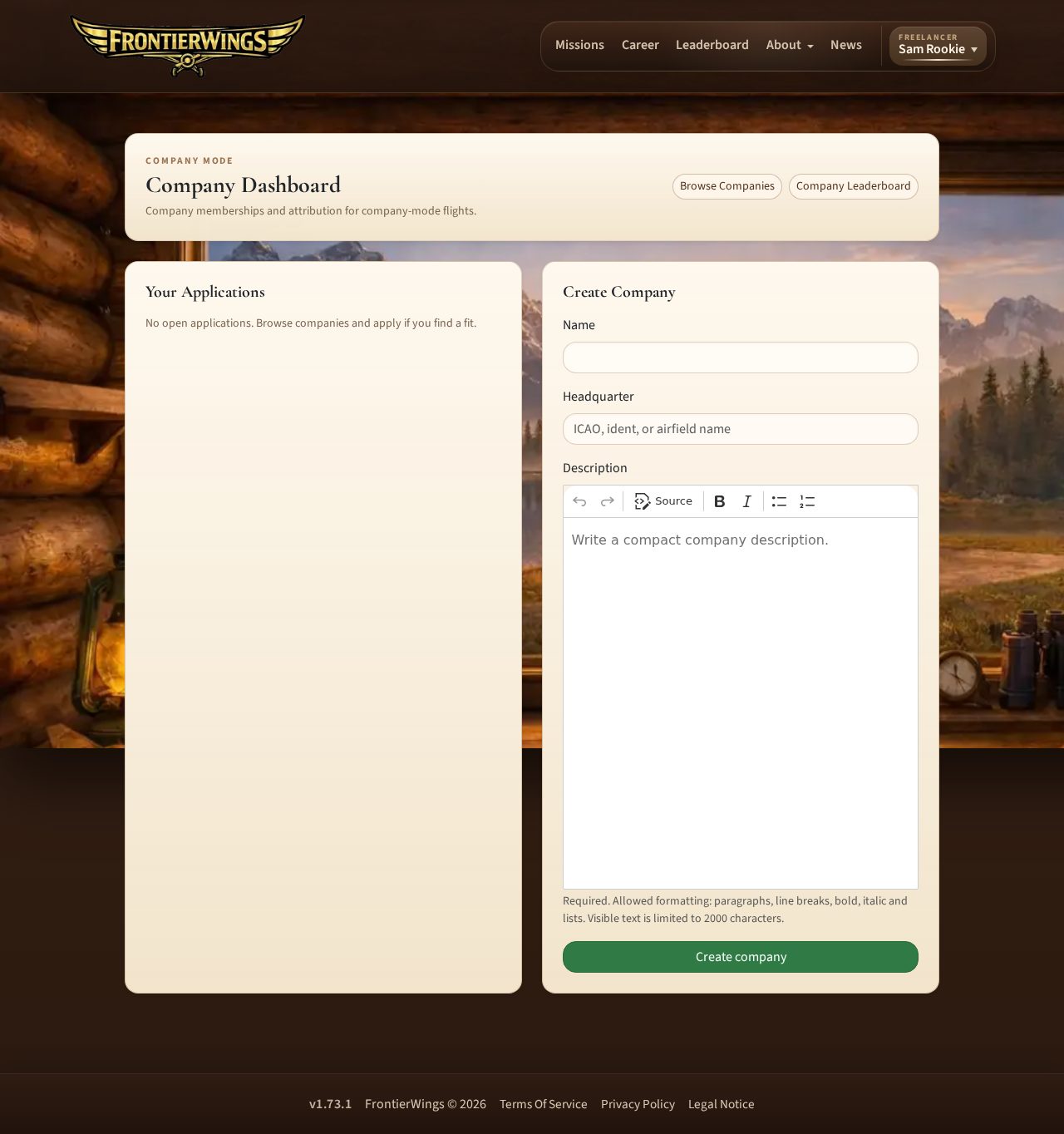
The company directory, company profiles, applications, and dashboard require sign-in and active gameplay access. The company leaderboard is public.
Joining A Company
Open Company from the account menu, then browse companies.
Open a company page and click Apply to join.
Applications have no message field. Recruiting and discussion happen outside FrontierWings.
If your application is pending, you can see it in your company dashboard and withdraw it if needed.
Company owners can accept or reject applications.
A pilot can have at most three open applications. After a rejection, a waiting period may apply before applying to the same company again.
Creating A Company
If you are not already in a company, you can create one from the company dashboard.
You choose:
- company name
- headquarter airfield
- description
The founder becomes the owner and is switched to company mode at the company HQ.
Owners can edit company profile information, upload a logo, review applications, transfer ownership, and delete the company if they are the only active member.
An owner must transfer ownership before leaving a company that still has other active members.
Logo uploads are limited to square JPG or WebP images, up to 400 x 400 pixels and 1 MB.
Descriptions are required. They allow simple formatting such as paragraphs, bold, italic, and lists. Links and images are removed, and visible text is limited to 2000 characters.
How Company Credit Works
Company credit is awarded only when all of these are true:
- you are an active member of a company
- your personal career mode is
Company - the mission is accepted or activated while both conditions are true
- the mission is later resolved through the normal flight flow
Simply being in a company is not enough. If you fly in freelance mode, that mission is not credited to the company.
Company attribution is saved when the mission is accepted or activated. If you change companies later, old flights remain credited to the company they were flown for at the time.
Pilot Profile Settings
Open Profile from the account menu.
The profile page shows:
- pilot name
- title
- total flight time
- career mode
- company membership
- current field
- home field
- last freelance field
- last company field
- missions flown
- public achievements state
From profile you can:
- switch between freelance and company mode
- enable or disable public achievements
- copy the public achievements link and forum-signature embed code when sharing is enabled
- return the company-mode location to the company HQ when eligible
Company mode uses the current company's HQ as the home airfield. It cannot be changed separately from the pilot profile. Pilot names can only be changed by an administrator after registration.
These settings affect only the currently selected pilot.
Account Settings
Open Account Settings from the account menu for actions that affect every pilot attached to the login account.
From account settings you can:
- review the account email, access status, and number of pilot profiles
- change the shared account password
- sign out all simulator clients
- open billing and shared custom-airfield management
Signing out all simulator clients is mostly for troubleshooting, shared computers, or when you want all saved client sessions revoked.
Account deletion is not available to members. It can only be performed by an administrator after payment and company relationships have been reviewed.
Downloads And Member Pages
The account menu may include member-only content pages, such as client downloads or other pilot resources.
Use the protected client download to install the FrontierWings simulator client. You only need the installer once: the installed client updates itself.
The protected client download requires a signed-in account, but the download route does not separately require active gameplay access. Whether a download page appears in the account menu depends on the member pages currently published by FrontierWings. The installer may also be temporarily unavailable while an operator publishes a new release.
Random Flight Generator
The public Random Flight Generator at /rfg is a free planning tool. It uses a 20–2,000 NM target distance per leg, up to 50 stopovers, country include/exclude filters, optional seaplane-base inclusion, and helicopter-only routing, and exports an MSFS 2024 flight plan. Generation/download do not require an account; its place in navigation depends on published menu configuration.
Generation alone does not create a FrontierWings career mission or award progression. An active member flying in Freelancer mode can choose a cargo load and save the route as a pending Custom Mission, optionally keeping it as a repeatable route. For a route with stopovers, the mission uses the first and final airfield; the simulator client records the complete flown distance across the journey for the pilot profile.
Practical Flying Tips
Before accepting a mission:
- read the briefing
- check runway length and surface
- check payload
- check destination type, especially seaplane bases or heliports
- check weather if available
- decide whether your aircraft is suitable
Before starting tracking:
- load the simulator at the departure airfield
- use the same aircraft you intend to fly
- set fuel, passengers, and cargo sensibly
- run the client load check
- generate a flight plan if helpful
During the flight:
- keep the client open
- avoid simulator pause abuse, slew, teleporting, or changing aircraft
- fly the assigned route normally
- land at the assigned destination for normal completion
After landing:
- come to a stable full stop
- use
End Flight Trackingat the destination - use
Continue Lateronly for a deliberate stopover - use
End at Alternateonly when the mission is ending away from the destination - submit the PIREP before starting another mission
What FrontierWings Does Not Do
FrontierWings is intentionally focused on pilot career flying.
It currently does not include:
- aircraft ownership
- aircraft purchasing
- aircraft maintenance
- fleet management
- airline economy simulation
- money or credits as the core progression loop
- shared active company missions
- company-owned mission boards
- built-in company messaging
- multi-simulator support
- weather-driven mission validation
- mid-air saving or mid-air resume
The main progression is still simple: fly valid missions, log flight time, build your pilot history, and earn recognition.
Quick Troubleshooting
The Client Says No Active Mission
Return to the website, open Missions, and accept or activate a mission first.
I Cannot Accept A Mission
You probably already have a current mission, or your gameplay access is inactive. Finish or cancel the current mission, or check Billing.
I Cannot Cancel On The Website
Load the mission in the client and use Cancel Mission At HQ before protected tracking progress exists. Once progress is protected, use the normal tracking, stopover, or alternate flow.
My Load Check Fails
Adjust aircraft load in the simulator, then use Check Load Again. If the mission is too heavy, use Cancel Mission At HQ before tracking begins, return to the website, accept or activate the mission again if needed, and split it before loading it in the client.
I Landed Away From The Destination
If you want to continue later, come to a full stop and use Continue Later.
If the mission is over, use End at Alternate.
My Submission Failed
Use Retry Submission when the connection is back. Use Keep For Later if you need to retry later.
My Mission Failed Validation
Open Career, then Validation History. The failed entry should explain the validation reason or notes.
I Flew The Mission But Could Not Submit It
First retry any locally saved submission in the client. If normal client submission is no longer possible, open Manual PIREP, enter the actual airborne minutes, and explain the technical problem for administrator review.
My Public Achievements Are Not Visible
Open Profile, enable public achievements, and copy the public link from the profile page.
Getting Support
When reporting a problem, include your pilot name, mission and route, approximate time with time zone, client version, aircraft, and the exact error message. Add a screenshot when it helps explain the state of the website or client.
The client log is stored at %LocalAppData%\FrontierWings\SimClient\client.log.
Never send your password, email verification code, payment information, or saved client token.